Convolution#
Here is a brief description of the Convolution type, which uses notions introduced in the Histogram Section, recommended to be looked at first.
The convolution of independent random variables  is the distribution of their sum
  .
.
Constructor#
Similarly to the histogram case, there are two constructors for the
openalea.stat_tool.convolution.Convolution class that are used as
follows:
>>> d1 = Binomial(0, 10, 0.5)
>>> d2 = NegativeBinomial(0, 1, 0.1)
>>> conv1 = Convolution(d1, d2)
>>> print(conv1)
CONVOLUTION 2 DISTRIBUTIONS
mean: 13.9369   median: 11   mode: 7
variance: 88.332   standard deviation: 9.39851   lower quartile: 7   upper quartile: 18

DISTRIBUTION 1
BINOMIAL   INF_BOUND : 0   SUP_BOUND : 10   PROBABILITY : 0.5
mean: 5   median: 5   mode: 5
variance: 2.5   standard deviation: 1.58114   lower quartile: 4   upper quartile: 6

DISTRIBUTION 2
NEGATIVE_BINOMIAL   INF_BOUND : 0   PARAMETER : 1   PROBABILITY : 0.1
mean: 9   median: 6   mode: 0
variance: 90   standard deviation: 9.48683   lower quartile: 2   upper quartile: 13
and
>>> from openalea.stat_tool import get_shared_data
>>> conv2 = Convolution(get_shared_data("convolution1.conv"))
In the first example, which we’ll use later on, one create the convolution of
two Distributions that are a
openalea.stat_tool.distribution.Binomial and
openalea.stat_tool.distribution.NegativeBinomial distributions.
This can be extended to an arbitrary number of distributions:
>>> d1 = Binomial(0, 10, 0.5)
>>> d2 = NegativeBinomial(0, 1, 0.1)
>>> d3 = Binomial(1, 3, 0.2)
>>> conv3 = Convolution(d1, d2, d3)
The convolution as well as the original distributions are stored within the Convolution instance. We will see how to extract the original distributions later on.
In order to display the contents, or to save the data, one uses the same functions /methods as in the Histogram case.
Plotting#
>>> clf()
>>> import openalea.stat_tool.plot
>>> plot.DISABLE_PLOT=True
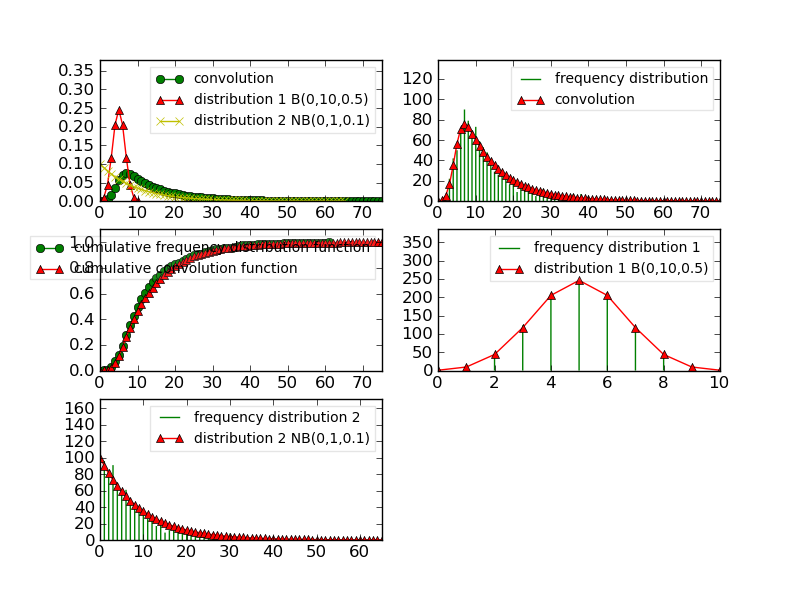
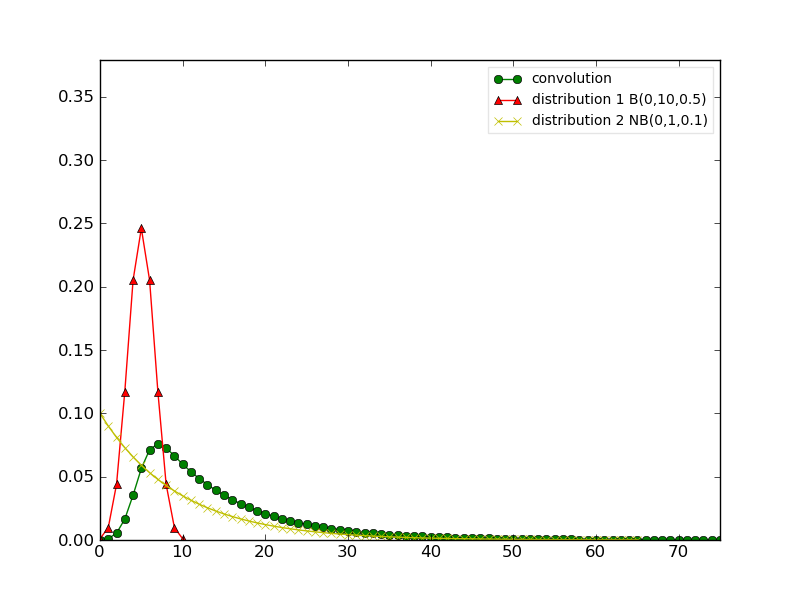
>>> conv1.plot()
>>> savefig('user/stat_tool_convolution_plot1.png')
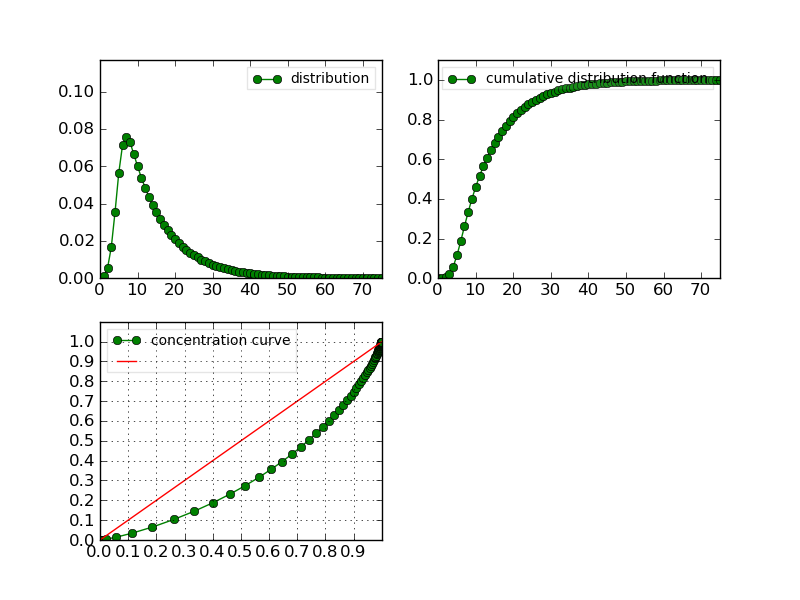
The following figure gather the original distribution and the convolution within a single plot.
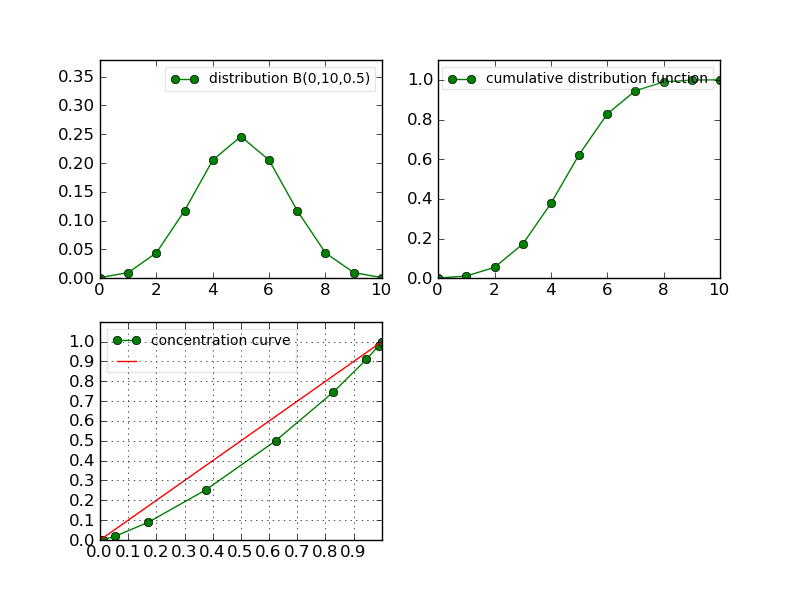
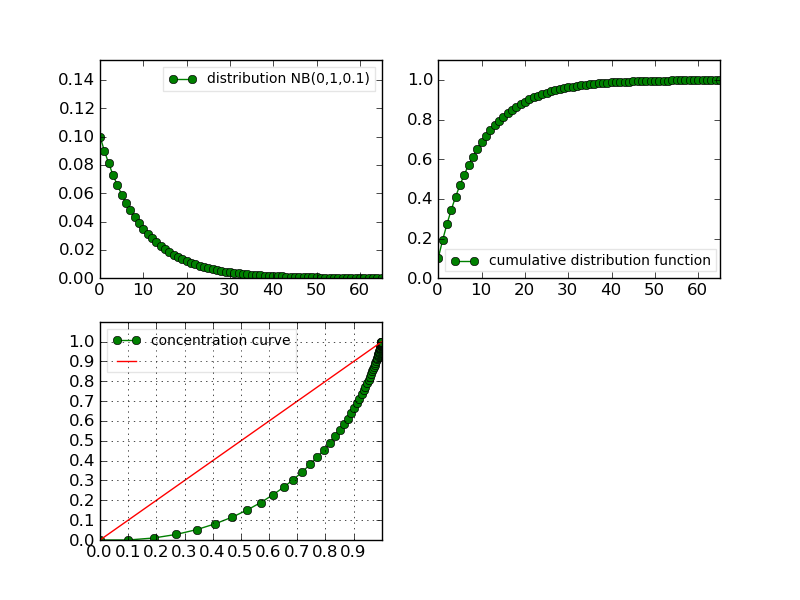
It is easy to extract only the relevant distribution and to plot it. You need to use the Extract-like functions/methods:
>>> clf();
>>> d1_bis = Extract(conv1, "Elementary",1).plot()
>>> savefig('user/stat_tool_convolution_plot2.png')

>>> clf();
>>> d2_bis = Extract(conv1, "Elementary",2).plot()
>>> savefig('user/stat_tool_convolution_plot3.png')

>>> clf();
>>> conv1_bis = Extract(conv1, "Convolution").plot()
>>> savefig('user/stat_tool_convolution_plot4.png')
|
|
|
|
|
Simulate#
Once you have a Convolution, you can simulate a data set using:
>>> simulation = Simulate(conv1, 10)
and compare the resulting data with the original one. This comparison can be done visually:
>>> clf();
>>> simulation.plot()
>>> Simulate(conv1,1000).plot() # equivalent to the line above
>>> savefig('user/stat_tool_convolution_plot5.png')